


Page 79 - TP_IT_V4.0_C10
P. 79
Navigation Keys: These keys include the arrow keys (Up, Down, Left, Right), Home, End, Page Up, and
Page Down keys. They are used for navigating within documents or interfaces.
Command Keys: Keys such as Insert, Delete, Backspace, and Enter are command keys. When the Insert key
is turned ON, it helps you overwrite characters to the right of the cursor.
Enter Key: This key is sometimes also labelled as Return key. It is used to send cursor to the next line.
Sometimes Enter key is used to execute a command.
Windows key: Pressing the Windows key on your keyboard activates the Start menu.
Numeric Keypad: This is a set of keys on the right side of most keyboards. It includes numbers,
mathematical operators, and sometimes a Num Lock key to toggle between numeric input and navigation
functions.
Notes
Pressing the Backspace key deletes a character left to the cursor. While Pressing the Delete key removes
a character to the right.
Using a Mouse
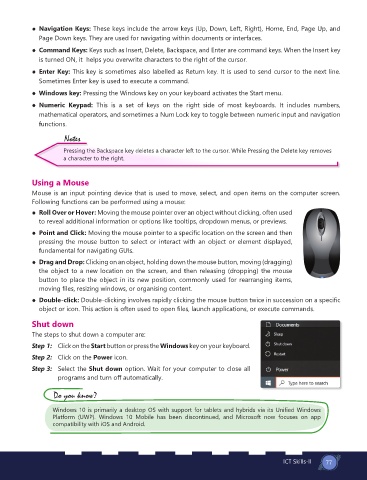
Mouse is an input pointing device that is used to move, select, and open items on the computer screen.
Following functions can be performed using a mouse:
Roll Over or Hover: Moving the mouse pointer over an object without clicking, often used
to reveal additional information or options like tooltips, dropdown menus, or previews.
Point and Click: Moving the mouse pointer to a specific location on the screen and then
pressing the mouse button to select or interact with an object or element displayed,
fundamental for navigating GUIs.
Drag and Drop: Clicking on an object, holding down the mouse button, moving (dragging)
the object to a new location on the screen, and then releasing (dropping) the mouse
button to place the object in its new position, commonly used for rearranging items,
moving files, resizing windows, or organising content.
Double-click: Double-clicking involves rapidly clicking the mouse button twice in succession on a specific
object or icon. This action is often used to open files, launch applications, or execute commands.
Shut down
The steps to shut down a computer are:
Step 1: Click on the Start button or press the Windows key on your keyboard.
Step 2: Click on the Power icon.
Step 3: Select the Shut down option. Wait for your computer to close all
programs and turn off automatically.
Do you know?
Windows 10 is primarily a desktop OS with support for tablets and hybrids via its Unified Windows
Platform (UWP). Windows 10 Mobile has been discontinued, and Microsoft now focuses on app
compatibility with iOS and Android.
ICT Skills-II 77

