


Page 235 - TP_IT_V4.0_C9
P. 235
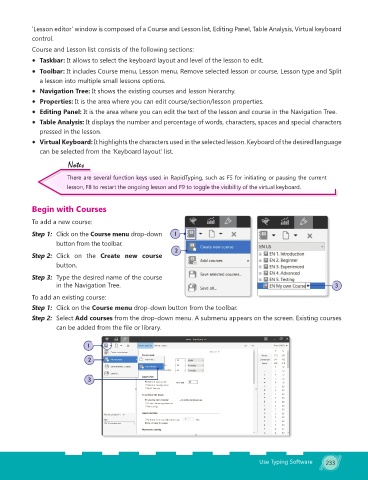
‘Lesson editor’ window is composed of a Course and Lesson list, Editing Panel, Table Analysis, Virtual keyboard
control.
Course and Lesson list consists of the following sections:
Taskbar: It allows to select the keyboard layout and level of the lesson to edit.
Toolbar: It includes Course menu, Lesson menu, Remove selected lesson or course, Lesson type and Split
a lesson into multiple small lessons options.
Navigation Tree: It shows the existing courses and lesson hierarchy.
Properties: It is the area where you can edit course/section/lesson properties.
Editing Panel: It is the area where you can edit the text of the lesson and course in the Navigation Tree.
Table Analysis: It displays the number and percentage of words, characters, spaces and special characters
pressed in the lesson.
Virtual Keyboard: It highlights the characters used in the selected lesson. Keyboard of the desired language
can be selected from the ‘Keyboard layout’ list.
Notes
There are several function keys used in RapidTyping, such as F5 for initiating or pausing the current
lesson, F8 to restart the ongoing lesson and F9 to toggle the visibility of the virtual keyboard.
Begin with Courses
To add a new course:
Step 1: Click on the Course menu drop-down 1
button from the toolbar.
2
Step 2: Click on the Create new course
button.
Step 3: Type the desired name of the course
in the Navigation Tree. 3
To add an existing course:
Step 1: Click on the Course menu drop-down button from the toolbar.
Step 2: Select Add courses from the drop-down menu. A submenu appears on the screen. Existing courses
can be added from the file or library.
1
2
3
Use Typing Software 233

